Current versions of Sunshine/Moonlight don’t support streaming local microphone data to the remote desktop, so I wrote a small bash script that allows doing just that.
The script has a few functions that are listed via --help:
$ micctl --help
micctl 2
Usage:
  micctl status | reload | dump
  micctl filter on|off|toggle
  micctl rx     on|off|toggle
  micctl tx     on|off|toggle
  micctl monitor hardware|filtered|remote|off|cycle
  micctl waybar filter|rx|tx|monitor
The script contains templates for filtering, sending, and receiving; and, it writes those to the user’s pipewire configuration directory when invoked. Enabling or disabling any of the nodes will automatically restart the user’s systemd services for pipewire to apply changes. This keeps behaviour predictable as applications, but will cause momentary drops on Bluetooth headphones. Spamming the functions is actually a rather reliable way to crash the bluetooth.service…
The script supports the Waybar JSON format, so you can style a widget that can be used to toggle and observe the program status. BLUE indicates a node is loaded and present on the system, and when it turns GREEN some program is listening in on it. While the leftmost button “M” will cycle between RAW|FIL|REM (Raw, Filtered, Remote) to indicate which source is currently being looped back to the default audio output

Right now only the Filtered source is transmitted using the TX configuration, so enabling the “FIL” node that filters the raw hardware microphone is required. The script exposes a few tuning variables for the filter chain that allow optimising for hardware and environment, as well as the actual target IP to which data is sent to. There is no encryption.
It works great in my LAN, allowing me to make sure my microphone input is filtered from background noise for Teams and Discord calls, and enables me to use my microphone even on my remote desktop when I’m using moonlight and sunshine.
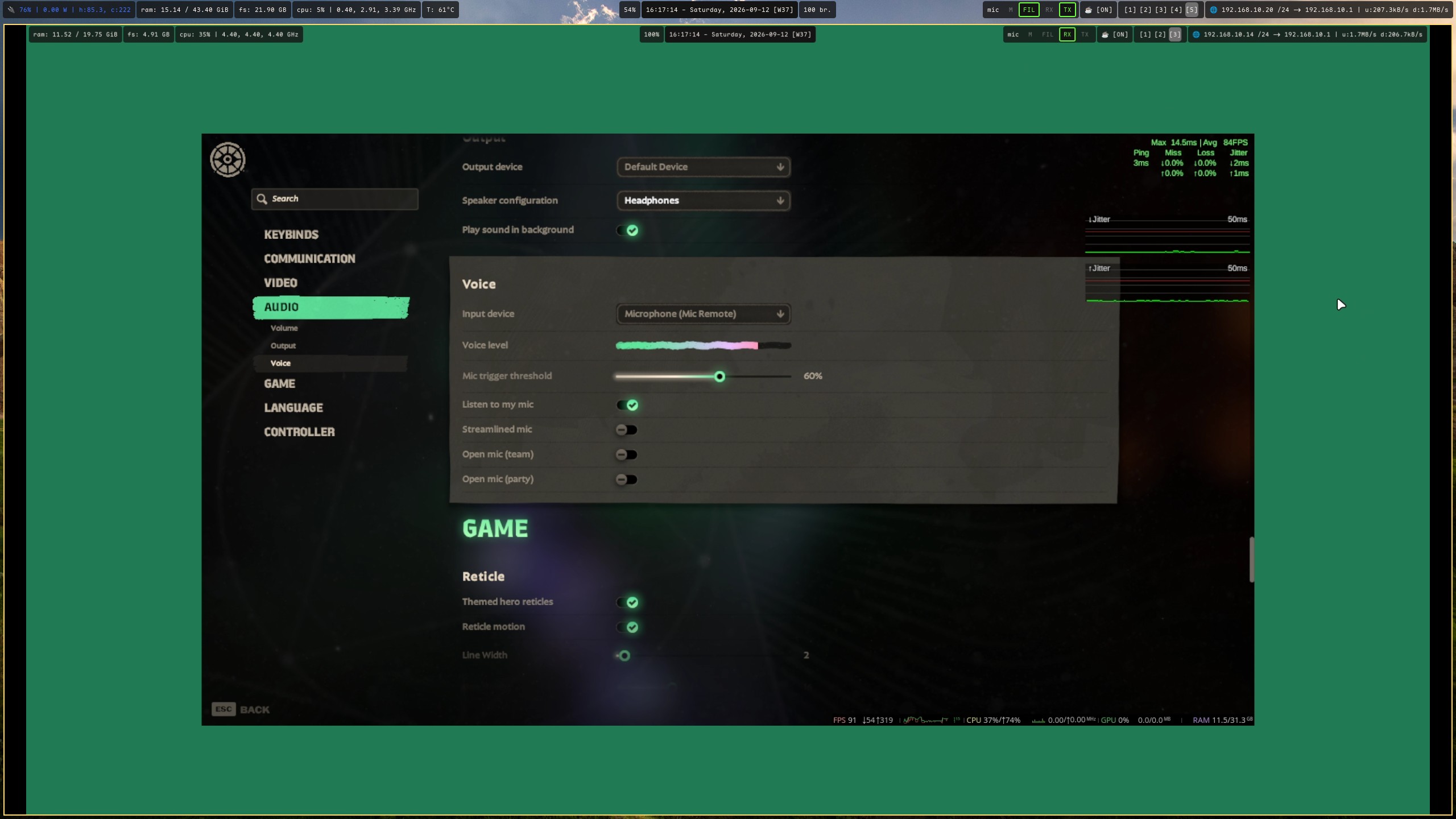
In the above example you can see the nested window has ‘RX’ enabled on the Waybar, while the laptop has enabled the FIL and TX. The demo application (Deadlock) correctly shows the “Mic Remote” source option, and listening in on it yields the same good sound as on the local laptop.
The ‘M’ button cycles through the monitoring options, enabling zero delay quick checkup on the current sound quality for any of the source types.