Baseline Description
This post details the current active configuration for my primary endpoint device, listing the planned general structure, required capabilities, and implementation details. It is the first in series of three and functions as the trusted cornerstone and platform for the implementation and management of the remaining two and everything beyond.
Most of the workstation configuration can be found within my dotfile repository, which includes not only my program configurations but also system initialisation, configuration, and deployment files.
Goals
The goal is quite simple, to have an above all reliable and secure portable device that can be used as a daily-driver for most computer-related tasks in most sensible environments. As such some of the goals are influenced by the currently relevant workloads, but not by much. I’m aiming for an all-rounder here.
Computers are so powerful nowadays that sufficient performance should be attainable on a wide variety of hardware, so general efficiency should be prioritised where possible. Anything more specialised workload-wise should be offloaded to purpose-specific machines with dedicated hardware or connectivity that is optimal for the workload (e.g. GPU compute, intensive disk IO, highly parallel CPU, fast networking).
I refuse to use anything other than Open-Source software on the machine (with possible minor exceptions), as the configuration has to be regarded as secure. So realistically the platform and hardware must have good Linux support. Anything by Microsoft or Apple is automatically disqualified due to their penchant for pushing arbitrary code to their hardware and software platforms in a way that can’t be disabled reliably, among other things like political affiliations (e.g. kowtowing, lobbying, etc.) and corporate interests (see: “Embrace, Extend, Extinguish”, Halloween Papers, Data Gathering, etc.).
Hardware
CPU, GPU
As there is a general emphasis on being efficient, the machine must have good battery life, no dedicated GPU, and a CPU that is either very efficient out of the box or can be tuned to be so without excessive workarounds via user space tools (e.g. TLP).
The integrated GPU should be performant enough for basic graphical output of a desktop environment, and support hardware accelerated decoding of contemporary video codecs (AV1, HEVC) main profiles.
RAM
Secondly, sufficient RAM must be available for extensive multitasking for the following categories as I don’t want my workflows to be constrained by the computer I use. Medium- and long-term these constraints would eat away too much time and opportunities to warrant the cost-savings on the hardware side.
- Multitasking Categories
- Web (Tabs, VoIP, Streaming multimedia)
- IDE and Building Software
- Virtualisation (VMs, Containers and Orchestration)
- Streaming low-latency remote desktop
- Moderate signal and data processing (text, video, audio)
- OS and Filesystem features (caching, /tmp, other ramdisks)
The aforementioned categories comprise most things I imagine doing on the regular, and typically I can push my RAM usage on the desktop to be slightly above 40GB when at home and hooked to an external display with couple workflows open simultaneously. This effectively mandates that the computer must have more than 32GB of RAM.
Connectivity, IO, HID
There should be at least a single USB-A and USB-C port, a full-size HDMI port, and an Ethernet port. The WiFi radio must have reliable drivers for Linux with a Bluetooth component that works simultaneously without causing issues like stuck states or inability to reset.
Most solidstate drives are perfectly fine for regular use, so anything made by a reliable manufacturer should suffice. No particular requirements for latencies or throughput, capacity should not exceed 1TB to deter bad practices of storing too much data on-device instead of the dedicated datastores on network.
Screen should not exceed “FHD” resolutions to preserve battery life and it should prioritise power efficiency over high refresh rates, low response times, and extended colour gamuts (e.g. DCI-P3, BT2020); but, still aim to provide accurate sRGB representation.
Keyboard has to have a numpad for productivity, and be sensibly laid out (standard format!). Omission of Delete, Insert, or End keys are automatic disqualifications, as they are often required for remote management software or important keybinds depending on the UI.
Software
From my experience, no single distribution manages to be perfect for all use cases. There are specific benefits and shortcomings to each of the popular distributions. While you can slightly deviate from the inteded use case, doing so will come with additional costs such as creation and maintenance of parallel systems and or modes of operation to facilitate the added or deviating capability. Not to mention all custom solutions are always liable to break as time passes.
I would also be vary of being stuck with any single distribution, as the direction of a project can’t reliably be guaranteed to stay true over the course of years and decades.
I want power to control the entirety of the system and its individual components, as well the freedom to pivot if needs change. I’ve therefore decided to approach the problem with a light layer of abstraction, where I define sets of packages and construct the environment successively from those sets. This gives me the benefit of designing the environment free from distribution specific limitations, and allows me to then later see what options best match my choices and approach at that time.
My prioritised choices for distributions in order are:
- Distribution ranking (as of 2025)
- Gentoo
- Flexible base system profiles for variety of use cases
- Powerful ebuild repositories (local and third-party)
- Native support for hierarchies (world <- sets <- atoms)
- Fine-grained control over pkg features via build time flags
- ability to whitelist and blacklist specific licenses
- Debian
- Strong FOSS emphasis
- Stability and longevity
- Trusted project leadership structure
- Arch
- Designed to provide full control over system components
- Forceful proximity to upstream
- Massive catalogue of software via AUR
- Popular with lots of excellent documentation and guides
- Fedora
- Aggressively recent pkg versions
- Relatively strong stability
- Unconcerned with FOSS if functionality is on the line
- Corporate bias
- Gentoo
There’s plenty of overlap between the previously listed distributions, and the choice between one or the other is very much up to individual discretion. For my case, I need to toggle some build time features that aren’t typically enabled on distributions like Debian or Arch. This has steered me towards Gentoo in the recent year, as it allows me to simplify my setup so every package can use the same build and management system, instead of having multiple parallel pipelines that need to be managed independently of each other.
If package specific build time configuration isn’t a concern, basically any one of the aforementioned distributions is a perfectly viable and functional base to work off. And in that case I would prefer something more straightforward like Debian or Arch, depending on how many and how recent the packages need to be.
Contrary to popular belief, distributions like Arch and Gentoo aren’t actually bad choices for servers and long-term deployments. Most problems stem from the administrators’ lack of proficiency in holistic management of the platform, not an inherent quality of the distribution itself.
If the used hardware platform requires ISV-certifications or is otherwise employing more closed source components, Fedora would perhaps be the most stable option. Sadly I can no longer recommend Ubuntu for typical usage, as Canonical has a habit of making very questionable choices when it comes to the direction of the distribution. Just be mindful that Ubuntu is often used as the de facto platform for standardised workflows that use more complicated components or supersets of software in applications like Nvidia’s CUDA, Cloud Native, and Machine Learning.
Configuration Details
The following is a small summary of the currently chosen system and user environment components. The full active lists can be found in my dotfiles subdirectory.
System Components
- Kernel, Boot, Init
- Linux
- I generally stick to stable versions, since some packges like ZFS are slower to be updated, and effectively hold the kernel version back.
- If using newer hardware platforms, most recent kernel versions may be required at the beginning of lifespan.
- Systemd-boot
- Boot manager with UEFI-only support.
- A simpler choice if already using systemd, and don’t require more advanced bootup environments, features, or tools.
- Dracut
- Tool to generate initramfs, which help the kernel during bootup to prepare the system for init.
- You’ll want this to have reliable access to extra modules like cryptsetup available before the system is initialised.
- Systemd
- I use for the init system, service manager, and logging facilities.
- Many unused components are simply disabled and replaced with other software that handles the tasks “better”.
- Linux
- Services
- Nftables
- Various networking tables and filtering.
- Supersedes iptables (legacy).
- NetworkManager
- Provides a daemon and interfaces to configure network connectivity on the system (eth, wifi, vrbr, etc.).
- Can be built to include ModemManager, if need to interface with modems.
- Chrony
- A robust network time protocol client and server.
- Cups
- For reliable printing related functionality.
- Nftables
Choosing systemd is perhaps the biggest point of contention in my current system-side setup, as using it brings in a lot of smaller components with functionality that is either unneeded, overlaps, or otherwise greatly oversteps the scope of the init system and other programs.
Just as an example, here are a few of the components that come with systemd and what they pertain to: systemd timers (cron), systemd-timesyncd (ntp), systemd-networkd (dhcp), systemd-nspawn (jails), systemd-resolved (dns), systemd-oomd (mem.), systemd-cryptsetup (crypt), systemd-tmpfiles, and a LOT more. Many of these conflict with other more mature and specific programs and their scope(s), which effectively means that conflicts will arise if you don’t properly manage your services.
System Tools
Here are some of the general tools I always want to have available, simply because they’re useful in most environments regardless of use-case (full list in dotfiles):
- System tools
- coreutils, “file, shell, and text manipulation utilities”.
- bash, best shell!
- pciutils, dmidecode, dealing with pci devices and memory.
- nvme-cli, proper nvme-drive management.
- bind-utils, it’s always dns…
- lsof, indispensable when troubleshooting annoying mounts.
- tree, quick overview of the dir tree.
- testdisk, partition and data recovery.
- fio, testing interconnects and storage devices.
- iperf3, for generating network traffic, good for testing and validation, and troubleshooting.
- mtr, combines ping and traceroute into a single handy view.
- usbutils, essential for validating, using, and troubleshooting any and all usb-devices.
- rsync, incremental file syncing with granular permission control.
- jq, yq, parsing json, yaml, toml, and so on. Handy in plenty of system automation and scripts.
- iotop, validate program IO loads.
- aria2, download manager that will save your life in flaky or faulted network conditions, where you need to acquire files or ISOs over the network to bring systems back online.
User Components
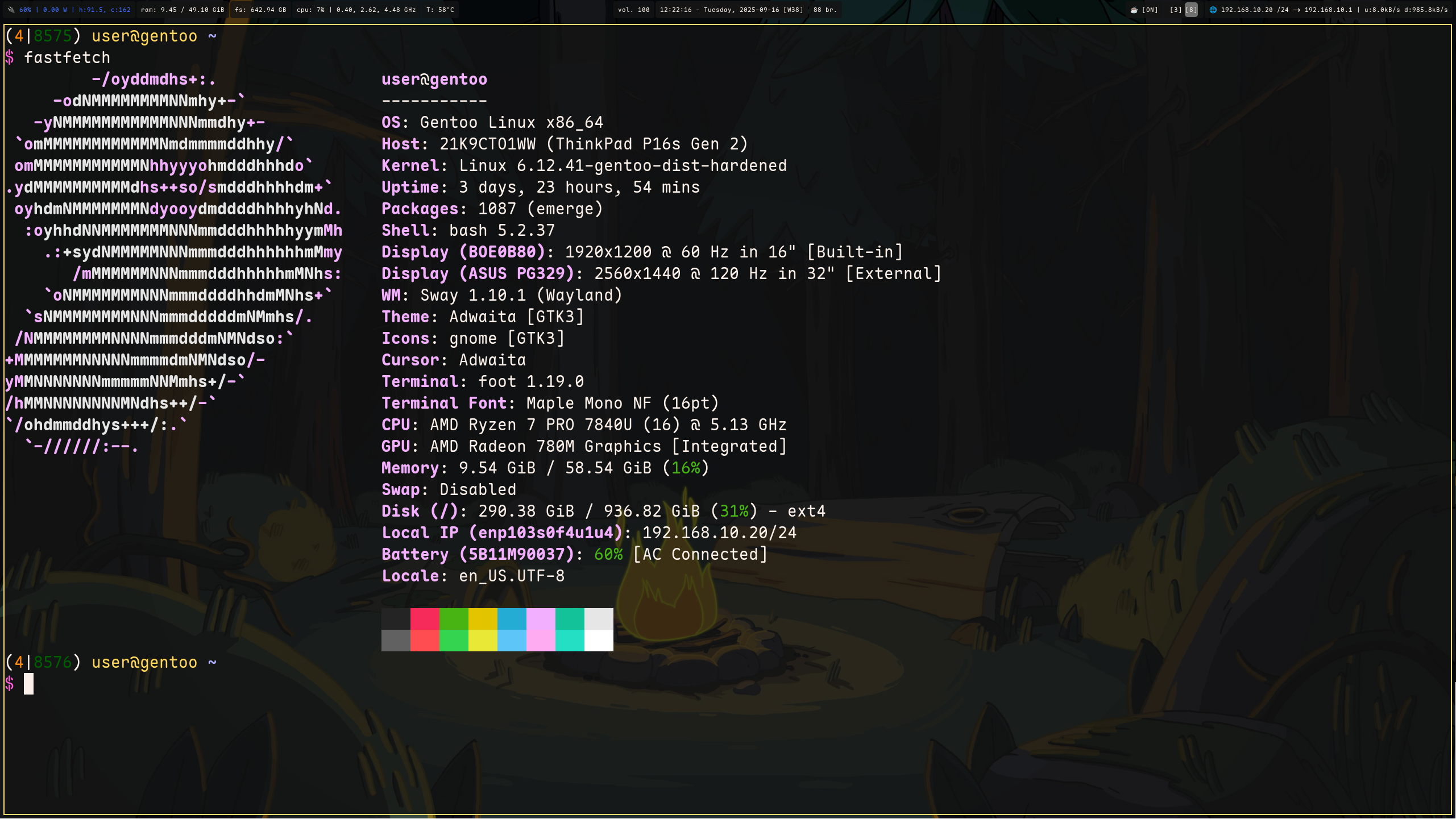
Now for the more fun stuff. What does my typical desktop environment look like, and what programs do I use daily? First some history on how I got to where I am now.
For the longest time I used Gnome almost exclusively, because KDE would crash literally any time I gave it a chance out of curiosity or neccessity, and I always found XFCE difficult to configure consistently. Out of these three only XFCE has reasonable system resource usage by default.
Gnome and KDE are hogs, and use around 1GB of RAM or more with a minimal configuration. This is a ludicrous amount of RAM to use just for the privilege of having a desktop wallpaper and fancy window borders. They also require quite a lot more processing power to run smoothly, and you will notice the lag and stutter unless you’ve got a beefy machine.
I finally got fed up with the state of things when Gnome started crashing more on the (at the time) recent versions and leaking memory with the most basic applications and usage. So I started looking for alternatives.
Coincidentally it also seemed like Wayland had finally matured enough to replace Xorg for daily usage, so I narrowed my research to Wayland-supporting compositors (see window manager for Xorg counterpart). This is also the time when I got curious about automatically tiled desktop environments, which seemed like an interesting approach to using a computer.
Anyway, long story short and plenty of testing later, I settled on a relatively speaking popular compositor called sway, and very much had now understood the massive boost to quality of live an automatically tiled environment can provide. After all, why move your windows around like a caveman yourself, if your computer can handle that for you automatically? And why shouldn’t the expectation be to use all available screen space that is free by default, instead of throwing the small program window into a random corner of the screen?
To summarise a little, I’ve found that a tiled environment automatically maximises the available screen space, sets windows according to the users preferences without the need for intervention, and contributes to increased focus. As a bonus, a minimal swaywm setup will consume around 200-300MB of RAM on its own, which is notably less than Gnome or KDE.
So with that in mind, here are some of the typical programs I use to setup my desktop and user environment:
- Terminal
- bash, the best shell!
- foot, a fast and capable terminal emulator with an extensive configuration file and support for sixel images(!).
- Desktop
- greetd, a simple login manager daemon which I use with tuigreet.
- polkit, authorisation framework.
- xdg-desktop-portal, a set of portals which expose dbus interfaces.
- swaywm, a tiling compositor.
- wl-clipboard, tools to manage clipboards on wayland.
- swaybg, swayidle, swaylock, a bg image, idle actions, and lockscreen.
- mako, system notifications with good scripting support.
- waybar, a desktop panel for various statuses for wayland.
- wofi, a program launcher for wayland.
- wireplumber, used with pipewire for contemporary audio.
- Programs
- neovim, a powerful text editor environment.
- qalculate, a great calculator that can do science in CLI.
- texlive, for LaTeX related activities.
- zathura, a simple pdf viewer.
- yazi, a convenient batteries-included terminal file browser.
- ffmpeg, the one-stop shop for multimedia encoding/decoding.
- mpv, the best multimedia player.
- firefox, the least sucky web browser (rooting for ladybird!)
- thunderbird, an effective (but bloated) mail client.
- moonlight, a remote desktop (game stream) client for use with sunshine.
- virt-manager, a more user friendly way to virtualise.
- gimp, editing images and photos.
- inkscape, editing vector-drawings.
- pcsc, tools for using smart cards (e.g. with yubikey-manager)
All in all, that is quite a list. Specially if you use a distribution like Gentoo that is unopinionated by default in the sense that programs don’t come with premade configurations. So to get going, you have to either configure every program before you’re ready, or fish someone elses configs from the internet. And that brings us to the next and the last topic for this post…
Implementation and Management
Going for an “all-custom” setup is timeconsuming in a lot of ways, but with that responsibility comes an opportunity for great power. Learning to understand what the various system components are, and how they interact allow better design, management, and automation of the system.
Before embarking on this journey of building your preferred environment, it’s imperative to setup a sensible structure to version all your work. Otherwise you’ll be very sad when it all goes poof. The classic approach to this problem has been a “dotfile repository” which contains the user’s preferred configurations. The name primarily refers to the contents of XDG’s config dir (~/.config by default) and other “hidden” configuration files present on the system. Though the repository material is obviously not limited to just that, you can chuck whatever you feel is important to you for recreating your environments in there.
My dotfiles include not only the traditional configuration files, but also a couple setup scripts for the actual base gentoo install, matches for sets of desired packages, convenience scripts for refreshing system and user configurations, and basic system service configurations among other things. I also version in limited capacity some important keystubs for SSH keys, GPG keys, and other tokens, so everything is always linked properly.
The following is a tree-view of my dotfile directory with submodule contents pruned:
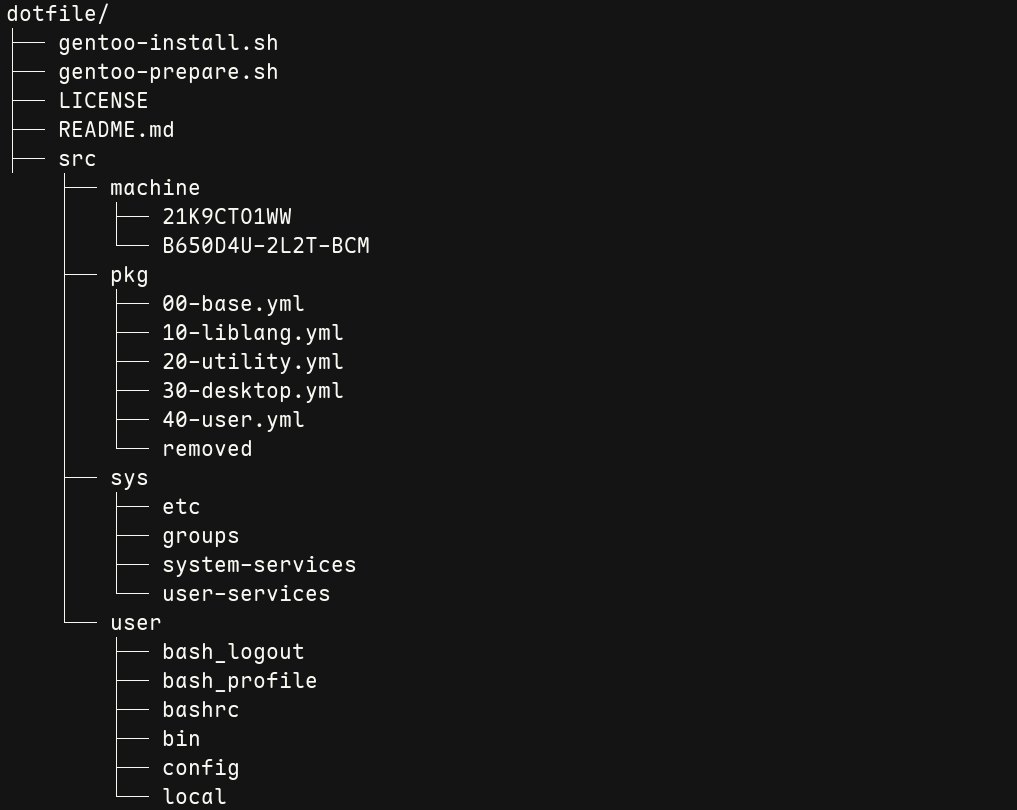
It can be seen from the structure that the main sources are split into the machine, pkg, sys, and user directories. The machine directory is specific to a hardware platform, while pkg and sys pertain to the general package and system selections and configurations. Meanwhile the user directory encompasses all user-specific configurations, scripts, and environment variables.
This structure provides clear segmentation of the versioned components and allow relative recreation of the directory paths inside each subdirectory, making it rather intuitive to see what each file points to on the actual system. As an example, the sys directory emulates the system root directory, which contains directories like etc. While the user directory is akin to the user’s home root directory, containing directories like (.)config and bin.
Next is an example of what my user directory structure looks like:
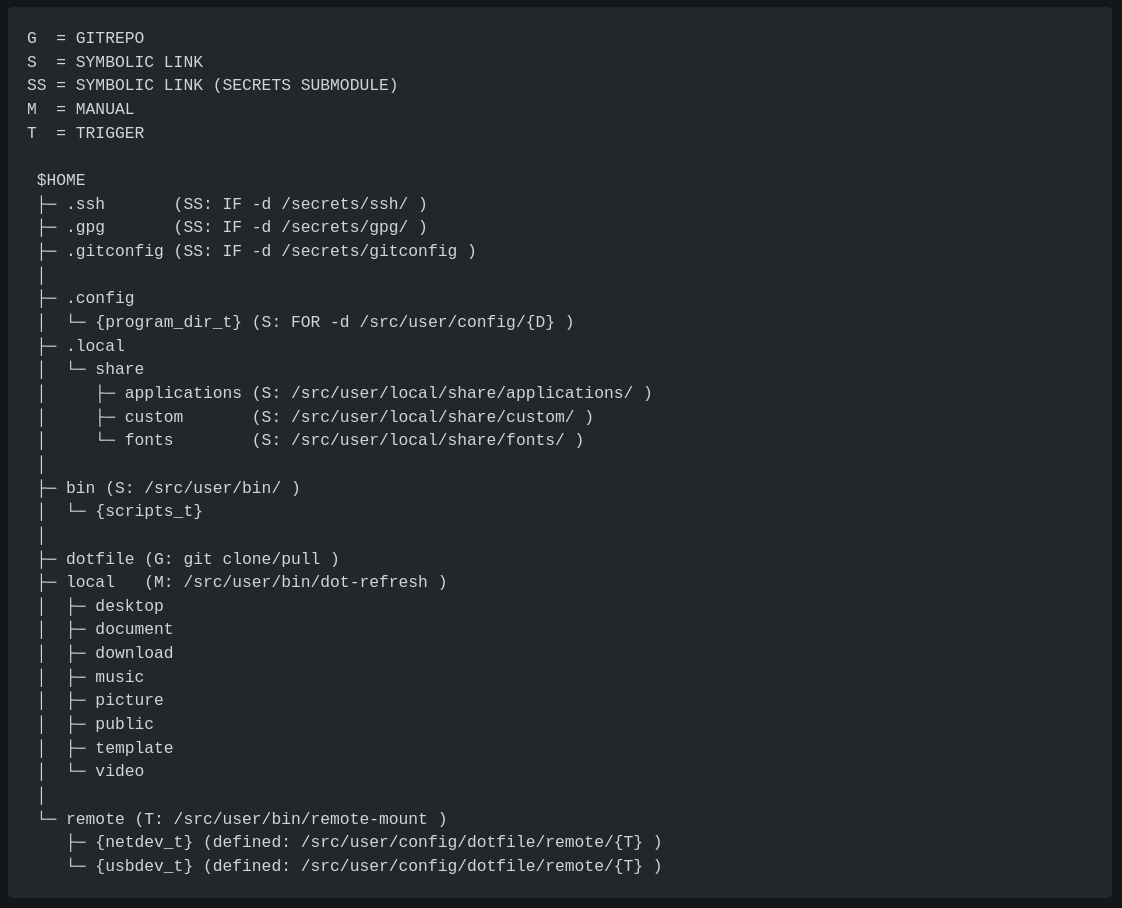
You can spot my “dotfiles” (the repository dir) at the root of my user’s home directory. To hook the relevant configs in, I symbolically link all user-specific targets into their respective paths on the filesystem. This linking is handled through convenience scripts present in my ~/bin directory (see: dot-refresh and portage-refresh), so I can be sure there won’t be any fat-fingering going on.
The benefit of this approach is that all the applied custom configurations are stored within the single ~/dotfile directory, not replicated into multiple locations. This not only makes versioning a breeze, but allows changes to be tested incrementally, with easy rollbacks to known working configurations via git restore in the event something breaks after a change.
All user-specific daily file usage (reading, writing, deleting) is localised into the ~/local (note: NOT ~/.local) directory, which has been mapped as the path for many of the usual XDG directories (desktop, document, download, music, …). And, as I prefer consistent naming, I’ve also changed the directory names to all be lowercase and singular instead of a mix of singular and plural. This is a small change, but these things add up to make the UX much more enjoyable.
The counterpart for the ~/local directory is the ~/remote directory, which contains all remote mounts. The remote mounts are defined in my dotfiles as regular files, whose contents define their unique identifiers and other mounting options. Mounting and unmounting the targets is done using convenience scripts that read available targets from the definitions and see what is currently available (locally or via network routes).
Wrap-up
That’s it for the brief overview of my dotfiles! I didn’t go over everything, but I tried to include the basics while outlining the scope. The rest should be sort-of self explanatory once the general structure is clear.
While not the most elegant solution in the world, I find it rather powerful while remaining simple enough to manage and maintain for daily use. My spaghetti code aside, the setup works great and enables me to try new tools, automations, and approaches safely in my environment without risking normal usability, while providing a base that I can continue to build on top of as I best see fit.